I set up my laptop to run Gentoo as a host and use virtual machines daily. It's important to connect to the virtual machine's desktop. I also have two external monitors. I can use Spice and remote viewer to use the virtual machine without any problems. But I want to be able to connect to it from multiple different machines. I've tried a few ways and would like to write them down.
Requirements
There are different technologies and each of them has their own pros and cons. It's important to know the goal and make the trade off. For me, I would like to be able to pick up the same applications and their states whenever I connect to the virtual machine, no matter where I connect from. I also have two external monitors so it's preferred to use all the monitors.
So I list what my requirements are:
It uses the same desktop session and same applications.
It supports two 4K monitors.
I can connect to it from both Linux (the host) and Windows.
The performance must be acceptable.
There is no a perfect solution. So trade off must be made.
Spice Viewer
Spice is the best option if I just need to connect from the host. I can enable 3d acceleration and multiple monitors. Spice doesn't need to bind to any network interface and listen to any ports. I configure it to use a local socket. Presumably that'll be faster.
There is also a Spice viewer for Windows. So I have to change a little bit to the Spice settings. I have it to listen to a port on the network interface. That means I have to disable 3d acceleration.
With that settings, I can connect to it from the host and from Windows. They share the same desktop. I can use multiple monitors. But the only drawback is the performance. It's slow and not acceptable. It's obvious that it's refreshing the desktop whenever I open a window or move a window. I can tell that it's updating the desktop line by line.
Xrdp + xorgxrdp
This is also a good option. Xrdp creates a virtual display though. I don't need to configure too much to make it work. I can use multiple monitors and I can connect from both the host and Windows.
There are two drawbacks. I cannot have both local display session and the virtual display session running on the same time. I used to enable auto login on the virtual machine. With that, the remote session won't start. This has to do with the settings in systemd and dbus. It may be able to make it work but I don't plan to spend too much time. So I have to disable auto login. And that also means I will never use Spice on the host if I want to connect to the virtual machine via xrdp.
The big problem is that it doesn't share the desktop session. Every connection is a new session. So I cannot use it.
XPRA
I also tried set up the xpra proxy on the VM. With this, I can still use Spice on the host. I can continue to auto login to the virtual machine. Then I start xpra on login.
With xpra proxy, it's actually proxy the whole desktop environment. I then can run xpra on Windows to connect to it. The desktop session is indeed shared and re-used.
But xpra on Windows doesn't support multiple monitors. It looks like it's possible with some settings but I don't continue on that.
I also try xpra on the host. The performance is acceptable. It's laggy when it's playing video.
NoMachine
NoMachine is also a promising one. It support multiple monitors too and it's easy to set up. It mirrors the same desktop session. I can continue to use Spice on the host. I can enable auto login in the virtual machine and start NoMachine. It's similar to xpra.
The real problem is that it's relatively slow. It's not as slow as Spice on Windows. But I still can feel it's laggy even if I just browse the web, not playing any video.
Xrdp + Vnc
It still comes back to use xrdp. The only drawback of xorgxrdp is that it creates a new session for each connection. To workaround that, I use vnc instead of xorgxrdp.
The performance at first when playing video is super slow. The whole remote desktop is almost paused. I then add use_h264=1 to /etc/xrdp/xrdp.ini. Playing video doesn't cause the system any problem. It's still laggy though.
I also need to update a few settings in /etc/xrdp/sesman.ini:
This is to prevent the session from being terminated when it's idle or it's disconnected. I'm not in front of the desktop all the day.
Conclusion
I still use xrdp + vnc to connect. I need to make the trade off of not watching videos. I don't really watch too much videos. So that is ok. With xrdp + vnc, I can connect to the virtual machine from anywhere and pick up the application wherever it is.
After my last blog post, I finally bought my first Framework Laptop and set it up. Now, I'd like to share that journey with you.
The Framework Laptop
I opted for the Framework 13 Laptop because I love the concept of a modular and repairable machine. I don't plan on buying a new laptop for several years; what I really need are upgrades for the CPU and possibly the RAM. I chose the AMD version because I’m not a fan of E-P cores. I've never used an AMD CPU before. I had some idea how to use my computer and I didn't how E-P cores would work. But I didn't spend too much time comparing CPUs, as I believe either one would suffice.
When the package arrived, it came in different parts. The CPU was already installed on the motherboard, so all I had to do was to insert the RAM and disk, and follow the instructions to connect and cover the monitor and keyboard. It was straightforward and simple. I did encounter an issue with the monitor. That was a quality issue. But customer service replaced it quickly.
Although I like FreeBSD, I decided against using it because:
It failed to boot from the installation.
I wanted something that worked out of the box, with minimal time spent fixing issues.
I planned to virtualize my daily OS.
Virtualizing All the Systems
I envisioned using both a stable OS and an up-to-date OS. I didn't want an update to crash the system and force me to spend time fixing it. At the same time, I wanted to keep my system current. So, I decided to virtualize my setup.
I set up a VM host to be as simple and stable as possible, leaving it unchanged for long time. Meanwhile, I keep my VMs up to date. If a VM becomes irrecoverable, I can simply create a new one. In contrast, if the host system breaks due to an update, I can reinstall it and continue using the VMs.
This approach also allows smooth migration to different Linux distributions. I can reuse the same home directory and start a new VM with a different distro, though I haven't done that yet.
The data and home directory are stored on the host file system and shared with the VM. The VM gets as much CPU and memory as possible, and most USB devices are attached to the VM.
Linux Host
FreeBSD wasn't an option, as I mentioned earlier—it wouldn't boot. Additionally, I couldn't attach individual USB devices to the bhyve guest, and passing through the whole PCI would include too many devices needed by the host. KVM supports attaching USB devices, which is crucial for my usage.
I started with OpenSUSE as the host for a while, but it caused the system to overheat and shut down when using VMs. I tried various power management tools but couldn't resolve the issue.
Eventually, I chose Gentoo as the host and set up a minimal desktop environment using LXQt as the desktop environment. I chose Gentoo for its customization options and my familiarity with it. LXQt was selected for its lightweight nature and ease of managing my two external monitors. There are lighter window managers. But they don't come with detection of external monitors automatically.
Linux Guest
I use OpenSUSE as the guest OS for my daily tasks. It starts automatically when I log into the host, and I set up virt-viewer on start as well. So I would be able to start using the VM when I log in to the host.
I attempted to install FreeBSD as a guest but failed. I haven't investigated the issue yet, so I continue using OpenSUSE.
Using KDE and its GUI tools has made my workflow more productive compared to the terminal-heavy approach I used before.
Setup of the Host and Guest
I also set up a Windows VM, which complicates the overall setup. I must carefully allocate (maximum) memory for both the Linux and Windows VMs to avoid using swap, which causes noticeable audio/video choppiness. I aim to assign as much CPU and memory as possible to the Linux VM, with just enough for the Windows VM. So far, both run smoothly together.
I created a shared folder on the host, accessible to the Linux VM via virtio file system. However, I encountered some issues:
The virtio file system consumes memory, adding pressure on the system and increasing the possibility of swap usage.
Files added to the shared folder from the host aren't immediately visible in Dolphin on the guest VM without restarting Dolphin, although they are visible via the terminal.
Initially, video playback in the Linux VM was slow. I discovered it was because I hadn't enabled OpenGL for graphics. I enabled OpenGL using virtio video, and now I could play videos smoothly. The only drawback is that I can only enable OpenGL on one VM at a time.
I use a Unix socket for SPICE and PipeWire for audio, to reduce the latency. Below is my setting for video and audio.
One thing I missed is that I couldn't enable hibernation on the guest. Though there is an option to enable sleep to ram and sleep to disk, I'm surprised that it's only supported when the VM is set up for BIOS. If the VM is set up for UEFI, those options become invalid options.
I've been using it for about one year. So far the laptop and the setting are quite good.
FreeBSD is a less known and less common operating system amonst regular users. But it exists for a long time. Unfortantely, it is mainly used as a
server and doesn't focus on desktop environment as much. That doesn't mean it won't work as a desktop. About seven months ago, I switched
from Gentoo to FreeBSD as my daily desktop. And I have mixed feeling about that.
It is pretty smooth to install it. I won't repeat how to do it. The handbook includes everything you need to install and how to set up the desktop environment. Everything, including X11, works out of box. The handbook is all I need to get FreeBSD running.
There are two ways of installing applications. First, install pre-built binaries from FreeBSD repository. Second, build it locally and install it. I've been using Gentoo many years. So I don't hesitate to build all the applications.
There are a few things I hope we can improve the experience of building the application.
First, the hamdbook doesn't mention where the options of the packages are. When I build some applications, it prompts me about the options for the application. How is it possible to do it on multiple machines or even after I reinstall FreeBSD? I only figured it out when I read some posts in the FreeBSD forum.
Second, it's not clear how to set options globally. It's tedious to set the same options to every applicable packages. Again, I only figured it out from the forum.
Third, it's not straightforward to find the dependencies in the port tree. It's still possible to do that before you start building the application, but I hope there is some kind of script doing that to make it more convenient.
Though there are many open source applications, not all of them support FreeBSD. Some don't have full support. For example, Firefox on FreeBSD doesn't include some features such as sandbox. I cannot open that kind of websites because of it. FreeBSD provides a Linux Compatible Layer so that we can run Linux applications on top of it. It, however, may be quite tricky to configure for some specific applications. I used Obsidian. It doesn't run out of box on the Linux compatible layer. There are a few questions about how to run it, and nobody knew about that. Luckily a person on the forum shared how he/she did that. But that's already been a few month since I tried to use it.
The only thing that made me give up is the graphic card driver. It's unstable. I'm using an old card, but it occasionally crashes and I have the black screen. I have no idea how to recover that. I cannot even switch to the console.
I can see that it's improving during my usage. But in the end I decide to move on. There are some maintenance here and there. I think I don't have the leisure of time to handle that. At the same time I am thinking of buying a new laptop because it's more flexible in my current stage. I cannot use FreeBSD because it doesn't support the latest wifi.
Then I will use Linux again. I don't want to use Gentoo because I don't want to deal with fixing the dependencies conflicts when I update. What's more, I don't want to build from the source or configure too much myself. I think I'll use openSUSE and use most default settings. openSUSE is my first Linux distribution, and I like YaST.
We need money all the time, from young to old, from home to abroad. Income is a critical source of money. When we work, our paycheck is the income. Then what is our income when we're retired? My focus in this post is on the retirements in the US. If we earn enough credits before retirement, we can get Social Security. But there is a limit on how much we can get. What's worse, there is news that Social Security funds are going to run out. To supplement that, there are some options to consider: 401(k) Plans and IRAs (Individual Retirement Account). In this post, I'll show you the differences among common 401(k) Plan and IRAs, and what you should consider when you make contribution and withdrawal.
The idea about 401(k) Plan and IRAs is that you contribute while you're working. Once you are retired, you withdraw from them and those are your income. You usually make investments in the 401(k) Plan and IRAs. The earnings of those investments are yours too. The more you contribute, and the more the earnings are, the more you have when you're retired. There is a risk on the investment you make in the account. If you lose money in your investments, you'll get less too. There are always one risk or another no matter how you plan your retirement.
Differences Overview
The 401(k) Plan is sponsored by an employer. That means it's the company you work for to open and administrate the plan. On the other hand, IRA is opened by you. You can have both. That is not the only difference. From tax perspective, there can be pre-tax, Roth, and after-tax. I'll compare IRAs and 401(k) in most common categories. Common IRAs include Traditional IRA and Roth IRA. Depending the source of the contribution, 401(k)'s contribution can be pre-tax, Roth, and after-tax. They can be inside the same plan.
Begins January 1 of the year a contribution is made to any Roth IRA
N/A
Separate for each Roth account and begins on January 1 of the year contributions made to that account. If one Roth account is rolled into another, the earlier start date applies.
N/A
Beneficiary
Anyone
Anyone
Anyone but, if married, spouse must consent to non-spouse beneficiary
Anyone but, if married, spouse must consent to non-spouse beneficiary
Anyone but, if married, spouse must consent to non-spouse beneficiary
A Typical Example
The above is a quite high level overview. It may be difficult to understand how that relates to you and impacts your retirement plan. Tax is very important. Here is an example what happens in a typical and qualified scenario for each of the account.
Let's say you contribute $10K. Your balance in the account grows to $25K when you're retired and you withdraw $25K. There is $10K from the initial contribution, and $15K from the earnings of your investment. There are $10K contribution, $15K earnings, and $25K withdrawal.
When you do that in the Traditional IRA. The $10K is from your after-tax income. You may be able to deduct that from your tax return on the year you make the contribution. You should check deduction limit. That matters when you withdraw. When you withdrawal, you must pay the tax on the earnings portion which is $15K. As to the contribution portion, which is $10K, you only need to pay the tax on the amount that's deducted.
Now if you do that in the Roth IRA. That $10K is from your after-tax income. The downside is you cannot deduct that in your tax return. The upside is you don't need to pay tax when you withdraw those $25K from the account. Both the earnings ($15K) and the initial contribution ($10K) portions are not taxed.
In the case of 401(k), if you choose pre-tax (most case), That $10K is from your pre-tax income. That means that $10K isn't included when you calculate the tax you need to pay. But when you withdraw, both the earnings ($15K) and the initial contribution ($10K) portions will be taxed.
If you choose to make the Roth contribution in your 401(k), it's the same as Roth IRA. That $10K is from your after-tax income. You don't need to pay any tax on the earnings and initial contribution when you withdraw.
If you choose to make after tax contribution in your 401(k), same as Roth contribution, that $10K is from your after-tax income. You need to pay tax on the earnings portion ($15K) but you don't need to pay tax on the initial contribution portion ($10K).
What Happen in Withdrawal
It seems relative simple from the above examples. It's quite straightforward on the tax when you make the contribution. There are more to navigate when you need to withdraw. The examples above are for the qualified withdrawal. You need to pay extra attentions when they're not qualified, because you not only need to pay the tax on the withdrawal at your tax bracket, but also may need to pay additional 10% penalty tax.
Qualified Withdrawal
The details may be different in different accounts and be adjusted in future. You should check the IRS websites or other resources to get a complete list.
For the traditional IRA and pre-tax 401(k), you need to be at least 59.5 years old.
If it's Roth IRA, you need to have your account open for more than 5 years. In additional to that, you need to meet one of the criteria:
You're 59.5 years old when you withdraw.
You're permanently disabled.
You inherit the account and take the money out.
You take up to $10,000 as the first time home buyer.
If it's Roth 401(k), you need to have your Roth portion set up for more than 5 years, and you need to meet one of the criteria:
You're 59.5 years old.
You're permanently disabled.
You inherit the account and take the money out.
Early Withdrawal
If you withdraw before you're 59.5 years old or is not qualified, you're doing early withdrawal. You need to pay the income tax on partial or whole of your withdrawal and pay additional 10% tax as the penalty. The penalty tax is only applied to the taxable portion of your non-qualified distributions.
For the pre-tax 401(k), you need to pay your regular income tax and the penalty on all your withdrawal.
For the traditional IRA, you need to pay your regular income tax on all your withdrawal and the penalty on the earnings and the contribution portion if it's deductible.
For Roth 401(k) and Roth IRA, your contribution portion will be tax free and penalty free. But the earnings portion is subject to regular income tax and penalty.
For after-tax 401(k), I don't find too much data about that. Assuming the same principal still holds, which is you only need to pay tax once, It'll be similar to Roth 401(k). That is you only need to pay the regular tax and penalty on the earnings portion.
Early Withdrawal Penalty Exceptions
But as how complicate the rules are, there are exceptions to the penalty. The rules are of course different according to the accounts.
Traditional IRA
You're permanently disabled.
You need to cover medical expenses when it exceeds a certain amount of your adjusted gross income.
You need to cover qualified medical insurance premium during unemployment.
You need to cover qualified higher education expense.
You buy, build, or rebuild the first home.
You inherit it and withdraw funds as beneficiary.
You take a qualified reservist distribution - a distribution from a retirement account to a military reservist or member of National Guard called to active duty.
You need to cover medical expenses when it exceeds a certain amount of your adjusted gross income.
You need to cover qualified medical insurance premium during unemployment.
You need to cover qualified higher education expense.
You buy, build, or rebuild the first home.
You inherit it and withdraw funds as beneficiary.
You take a qualified reservist distribution - a distribution from a retirement account to a military reservist or member of National Guard called to active duty.
It's due to IRS levy of the qualified plan.
401(K)
You reach 59.5 years old when you leave your job.
You're permanently disabled.
You need to cover medical expenses when it exceeds a certain amount of your adjusted gross income.
You need to cover qualified medical insurance premium during unemployment.
You take a qualified reservist distribution - a distribution from a retirement account to a military reservist or member of National Guard called to active duty.
It's due to IRS levy of the plan.
Alternatives to Early Withdrawal
Some 401(K) plan allows borrowing from it. When you take the loan, you need to pay the principal and the interest. There are two benefits though
Unlike early withdrawal, you don't need to pay the income tax or the penalty.
Unlike taking personal loan, the interest you pay goes back to your 401(K) account, adding to its balance.
What you lose here maybe the potential growth of your investment in your 401(K) if you didn't take a loan. The loan is counted in dollars. The growth of your 401(K) depends on the shares of your investment. So if that investment keep going up, when you pay back your loan, you'll have less shares in your investment comparing to the case if you didn't take the loan.
This is intend to be an overview of what common retirement accounts are and what you need to know when you contribute and withdraw. I encourage you to review them with a professional such as an accountant, or read the articles in IRS website. There are much more details and potentially changes at each year.
mlterm is a lightweight and fast terminal. You can have your own configuration and customize it as you like.
I like mlterm because it can:
Display texts in non-English locales and supports input methods.
Has less dependencies. Unlike Konsole or Gnome-terminal, you don't need to install the extra packages when you're not using those desktop environments.
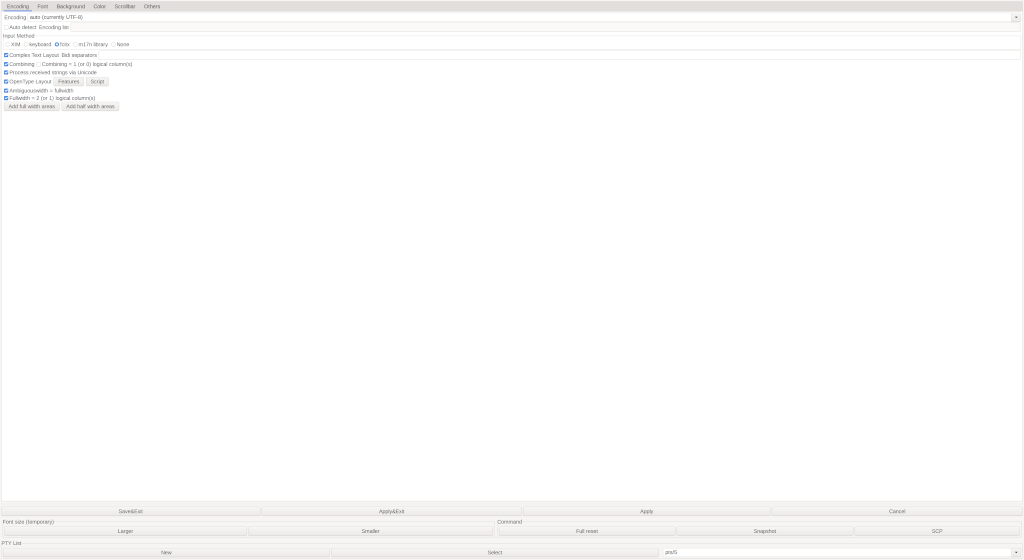
What you need to do is to use Control + Right Click on the mlterm window to open the GUI configuration. You can make the change, apply it, and view the change. Remember to save it so that you don't lose the changes when you open mlterm later. I found it doesn't save some settings. I have to modify the configuration files.
The second way to configure mlterm is to modify the files. The configurations are in the folder $HOME/.mlterm. There are a few files.The ones I'll make changes are in main, key, and aafont. The main configuration file contains settings for mlterm in general. The key configuration file contains the key bindings. The aafont configuration file contains the font settings when you use anti-alias fonts.
Use Multiple Languages
My locale is UTF-8 and mlterm can detect it automatically. So I don't touch encoding related settings. I do change the settings for fonts and input method.
Set use_aafont to true in the main configuration. Its default values is true if you run it on a desktop environment. It's false in mlterm-fb. So this is optional if you only use mlterm on a desktop environment. I explicitly set it to true in case I run mlterm-fb.
Choose the font for the corresponding encodings. you can choose fonts for different encodings. Since my locale is UTF-8, I set it for the UNICODE one. In the aafont configuration file. you need to put something like this:
UNICODE = Noto Sans Mono CJK SC 20
Enable anti alias. You need to choose the font type that supports this feature. This is the setting use_anti_alias in main configuration file.
Choose the input method. This is the setting input_method in the main configuration file. For example
input_method = fcitx
Copy And Paste
It's better to understand selection on X11 before configure copy and paste. Anything you want to transfer from application to application is stored in selection. There are PRIMARY and CLIPBOARD as the destination of the selection. Anything you select or highlight will go to PRIMARY automatically. It's easy do it. You just need to use the mouse to select the text and that will go to PRIMARY. Once you select different texts, the new texts will overwrite the old ones in PRIMARY. To paste from PRIMARY, you can click the middle button or use SHIFT + INSERT. Mlterm supports it out of box. CLIPBOARD maybe is what most of us are familiar with. You copy by using Control + C and paste by Control + V. It's different from PRIMARY in that a new selection doesn't overwrite the contents in CLIPBOARD. You have to repeat the copy to clipboard action to update CLIPBOARD. I am familar with CLIPBOARD's way of copy and paste, so I configure mlterm to use it.
Copy to CLIPBOARD
There is a setting to copy the selection to both PRIMARY and CLIBOARD. It's the setting use_clipboard=true in the main configuration file. Its default value is true so the setting is optional. But if you would like to separate them, as I do, you need to set use_clipboard=false to copy the selection to only PRIMARY. Then create a key binding to copy it to CLIPBOARD
Control+Shift+c="exesel:copy_to_clip"
exesel runs a command on the selected text. copy_to_clip is a script I create. Remember to put it in the folder that can be found from PATH.
Here is what the script copy_to_clip does:
echo $@ | xsel -i --clipboard
mlterm passes the selected text to the command copy_to_clip. What that does is to echo it to the ouput and pipe it to xsel. xsel takes the input from the pipe (-i) and copies it to CLIPBOARD (--clipboard).
Paste from CLIPBOARD
To paste from the clipboard, I configure the key bindings. The key bindings are defined in the key configuration file. The format is key=feature. The mlterm man page lists what keys can be used and what features are supported. To paste from CLIPBOARD, I use the feature proto:paste clipboard. I bind it to both right click and CTRL +SHIFT +V. The binding are
There is another feature INSERT_CLIPBOARD that allows you to paste from the clipboard. But you can only assign one key binding to it. But you can have multiple bindings to the proto features. That is why I use it and bind to both Control+Shift+v and Button3.
Use lsix
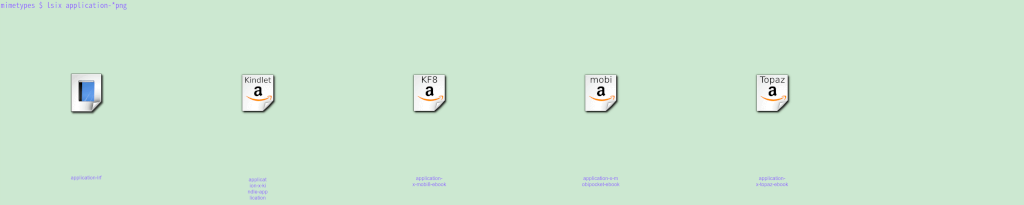
Since I mentioned lsix on mlterm, I would like to add to that there is an issue with it. The pictures are not displayed at the right place on mlterm. The good news is that lsix knows about that and has a fix for that. However, it only applies the fix when it detects that the terminal is mlterm. It checks the terminal type. But mlterm reports it's xterm. To fix that, I put termtype=mlterm in the main configuration file. You can also pass it in the argument (--term=mlterm) when you starts mlterm. That tells mlterm to report itself as mlterm and lsix can apply the fix. With this change, lsix will display the pictures at the right place.